Home/Free AI Video Background Remover

Free AI Video Background Remover

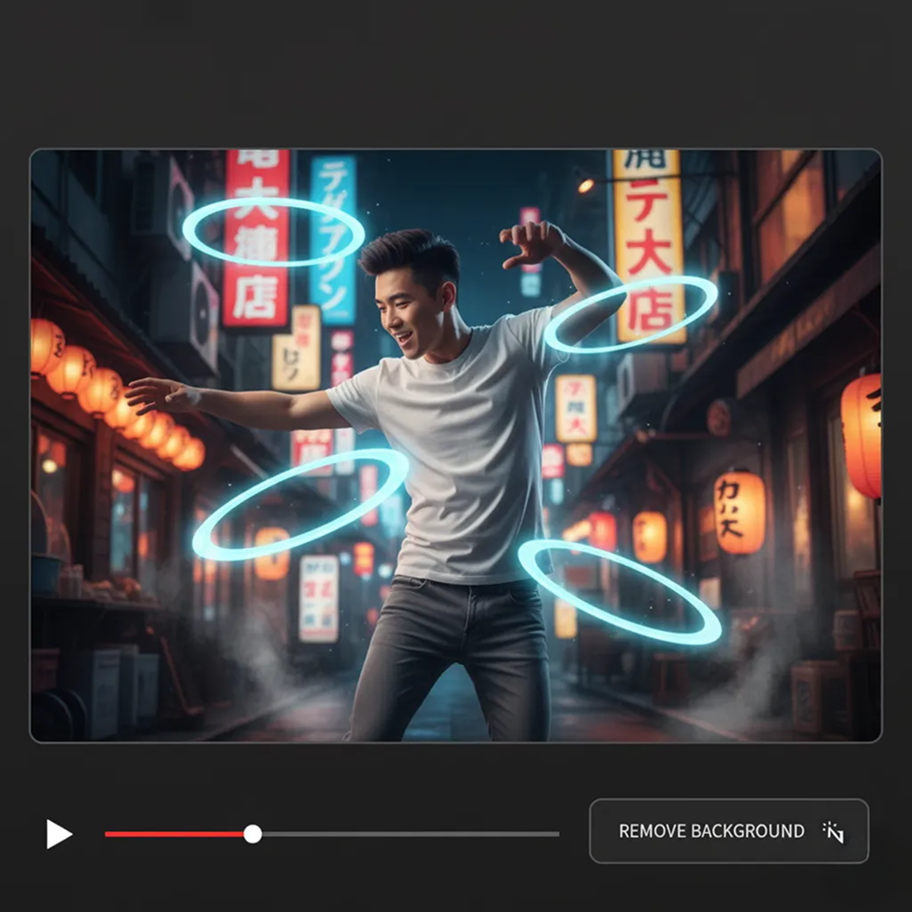
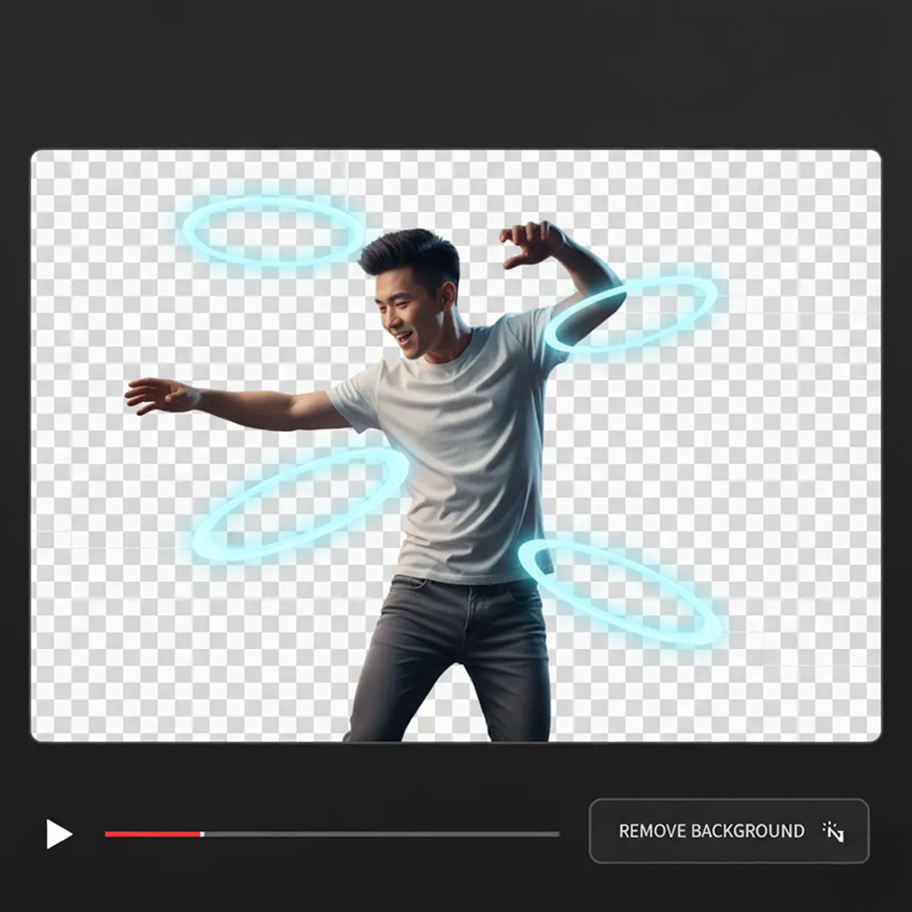
Remove or replace backgrounds in video online in seconds — without limits, downloads, or complicated tools. The AI Video Background Remover is built for content creators, marketers, and professionals who want clean, polished video content — with precision, simplicity, and just a few clicks.

New Project / Cover Art
1.png
AI Generated
0:08 / 0:24
2.png
AI Generated
0:08 / 0:24
Supported byimage (6).png
🎙️

What is an AI Video Background Remover?

Scene & Motion Intelligence

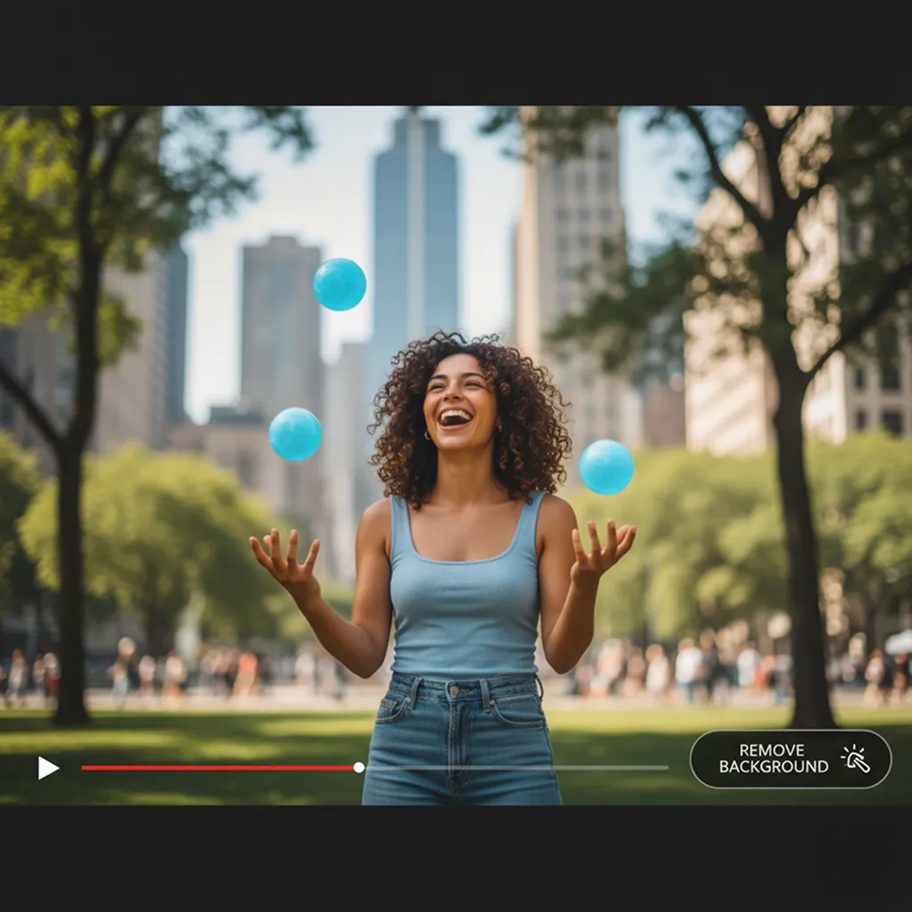
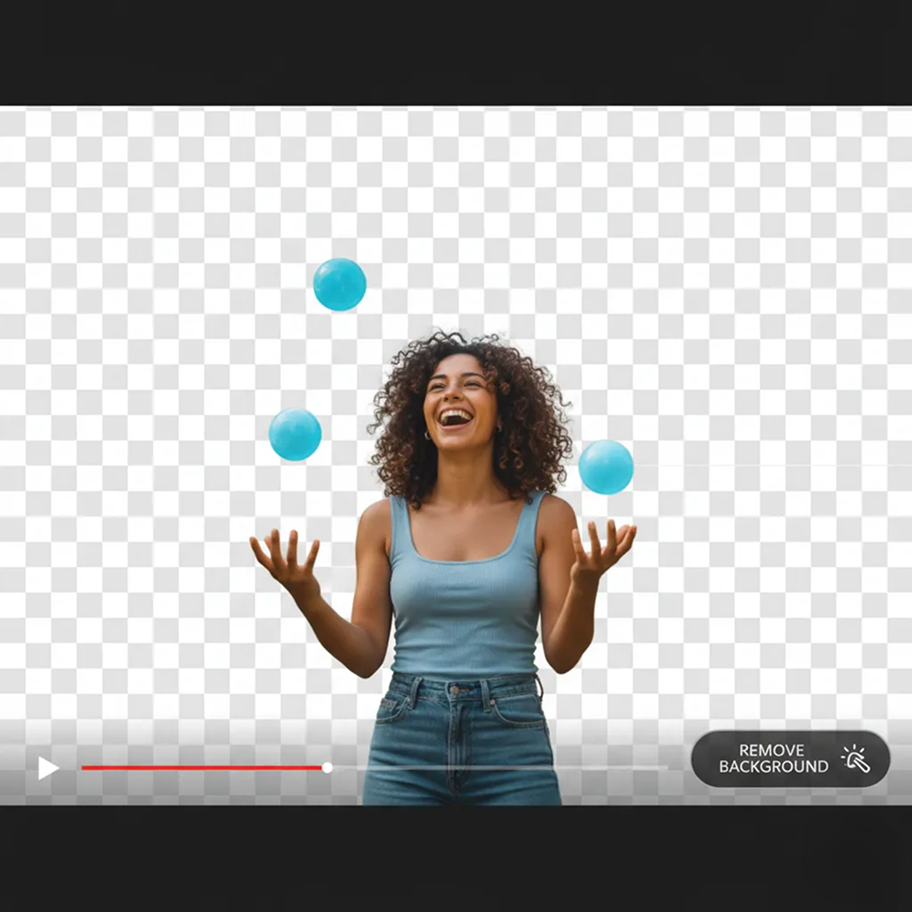
The AI understands video content and motion. From complex movements like flowing hair and fast action to detailed edges and subtle lighting, it accurately isolates subjects frame by frame without a green screen.

Beyond Basic Cropping

Achieve professional, clean results. Unlike simple cut-out tools, the AI analyzes motion, depth, and lighting to deliver seamless background removal or replacement, maintaining natural movement and detail.

Full Usage Rights

You own the edited video. Use it for commercials, social media, presentations, and professional projects without copyright issues or licensing limitations.

Why should you use the AI Video Background Remover?

High-Quality Output

Process and export videos in up to 4K resolution, maintaining professional quality for social media, advertising, presentations, and broadcasts.

🎨

Edit Instantly

Remove backgrounds, swap scenes, or adjust settings with a single click—no complex editing software or green screen setup required.

📐

No Software Required

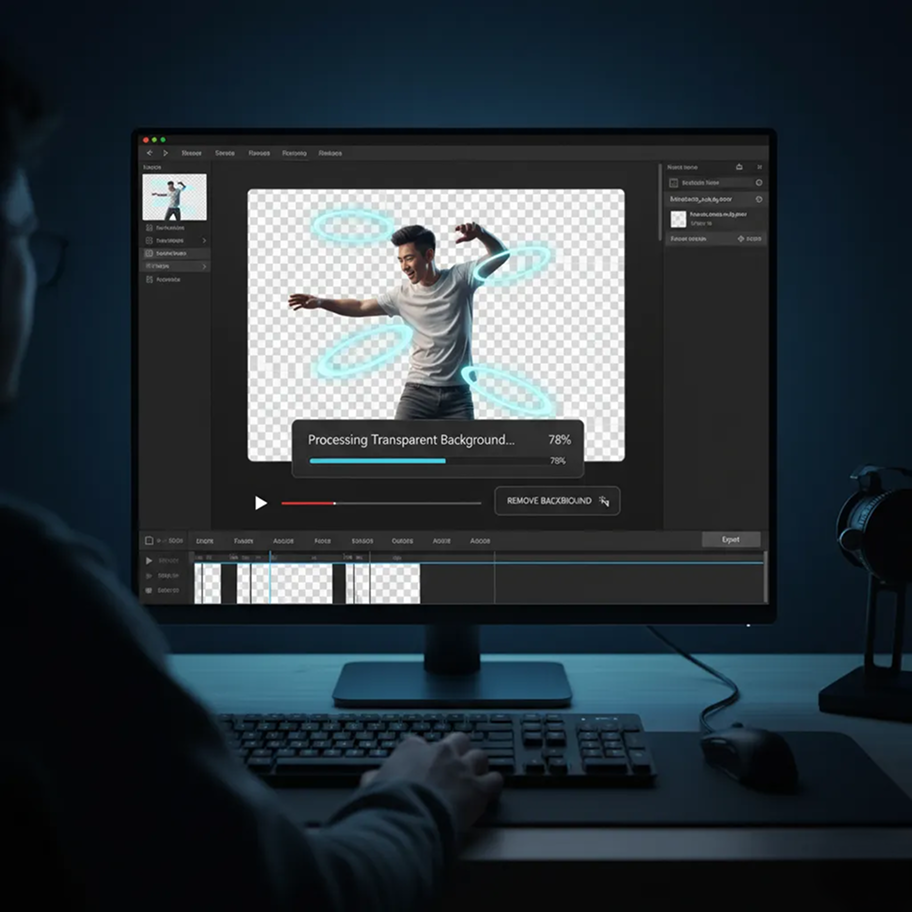
Everything operates directly in your browser. Save your video projects securely to the cloud and access them from any device, anytime.

🎯

Platform Optimized

Export videos in pre-set formats perfectly sized for YouTube, Instagram Reels, TikTok, LinkedIn, and other digital platforms.

From messy backgrounds to professional polish

Stop the inconsistency in your video content. Turn cluttered or unprofessional footage into clean, engaging video clips in seconds. Remove, replace, and refine backgrounds with AI. Build a strong, credible visual presence for any project—without a green screen or editing hassle.

Generated Image January 11, 2026 - 5_56PM 1.png
PROBLEM

A consistent, professional look across all your videos

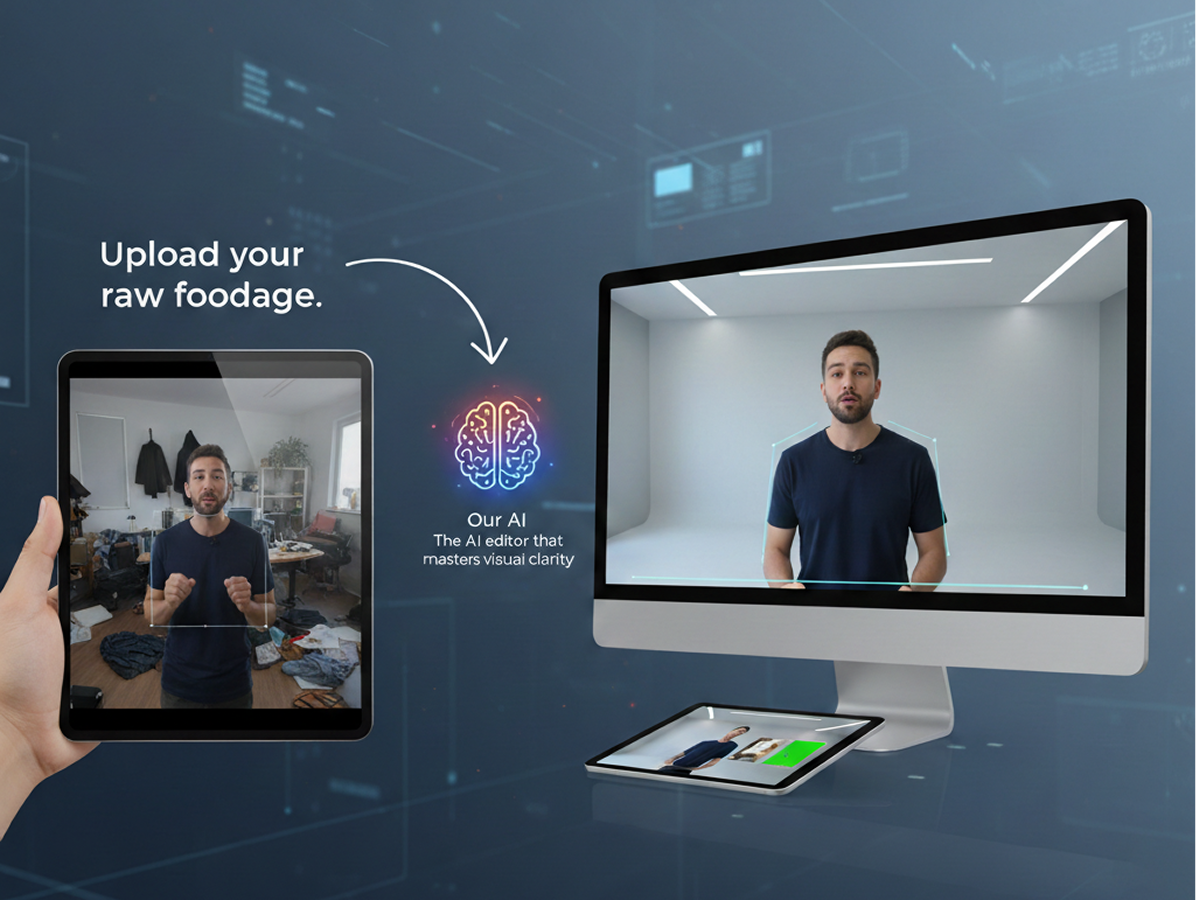
A video library that looks amateurish. When video clips for different uses—social media, presentations, ads—are shot in different locations or with inconsistent settings, the overall quality suffers. Busy, distracting, or mismatched backgrounds make your content feel unpolished and unreliable, undermining your brand’s credibility and viewer trust.

Solution

The AI editor that masters visual clarity. Upload your raw footage. Our AI becomes your virtual production assistant, automatically detecting and isolating subjects frame-by-frame, removing unwanted backgrounds, or replacing them with clean, professional settings. Every video will have a consistent, distraction-free look that reinforces your brand’s professionalism.

Generated Image January 11, 2026 - 6_28PM 1.png
PROBLEM

A professional video edit in minutes, not days—without the studio cost

Achieving clean backgrounds traditionally requires a green screen, proper lighting, and advanced editing skills—all of which are time-consuming and expensive. Hiring an editor adds cost and delays. Manual rotoscoping is tedious and often imperfect. Creating a library of professional-looking video content becomes a major obstacle.

SOLUTION

A professional video editing studio in your browser. For free. Transform raw, everyday footage into polished, background-free videos in minutes—not days. Our tool eliminates the need for expensive setups and software, preserving your budget and accelerating your content production.

Generated Image January 11, 2026 - 6_37PM 1.png
PROBLEM

Creative flexibility and visual variety without reshooting

Limited by your physical environment. How do you create diverse, engaging video content when you’re restricted to the same office, home, or outdoor space? Reusing the same backdrop makes your content repetitive and visually stale. You need the ability to place your subject in any setting—virtual or real—to keep your audience engaged.

SOLUTION

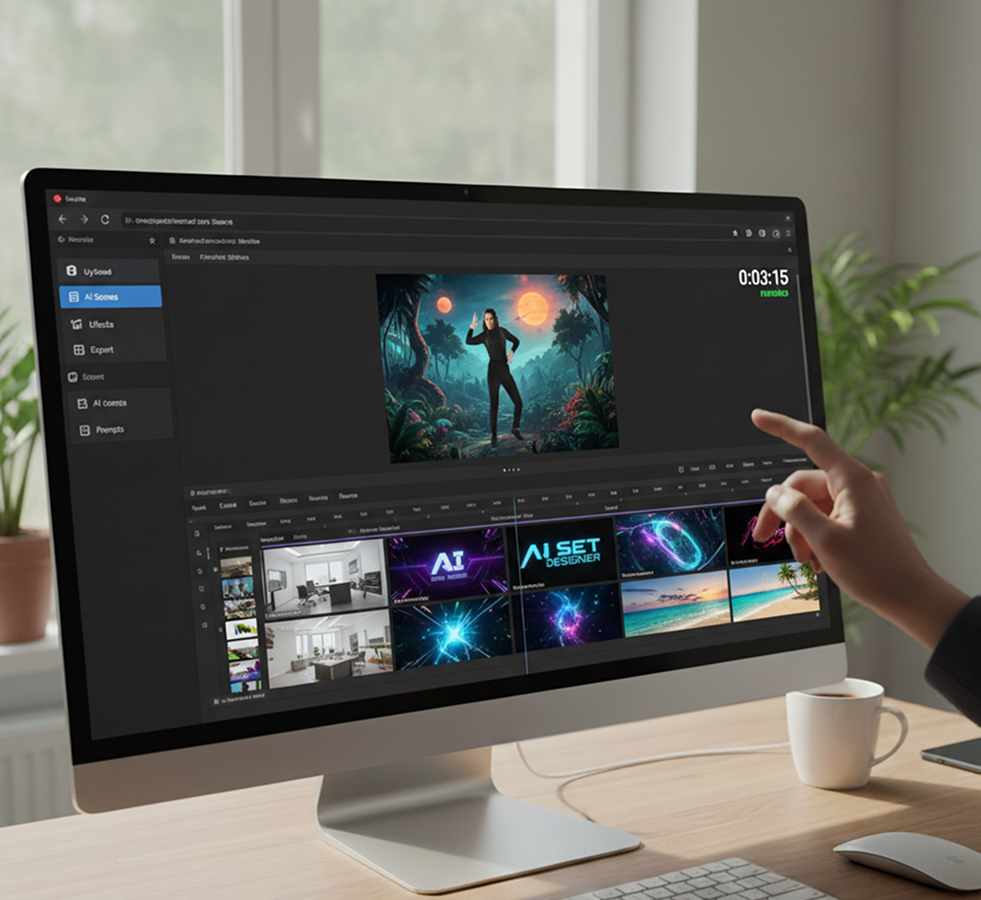
AI as your virtual set designer. Instantly replace backgrounds with anything you imagine—from professional office settings and branded environments to dynamic abstract visuals or exotic locations. This tool becomes your limitless creative backdrop, helping you produce varied, captivating video content that always looks professionally produced.

How to remove or replace video backgrounds

Editing a video background doesn't need to be hard or complicated. Here's a quick guide to get you started.

Generated Image January 11, 2026 - 6_50PM 1.png
1

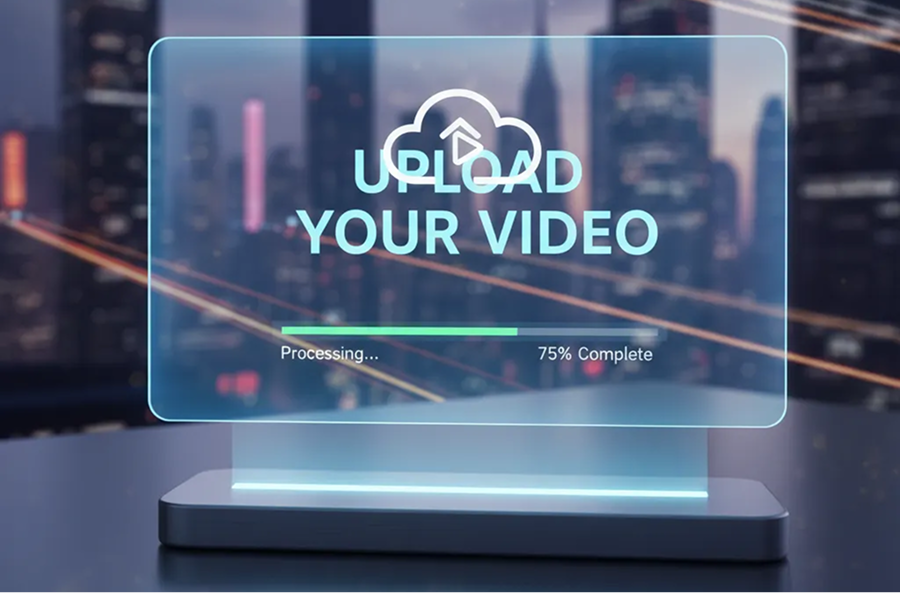
Upload your video

Select your video clip directly from your device. No green screen or special lighting is needed.

Placeholder image
2

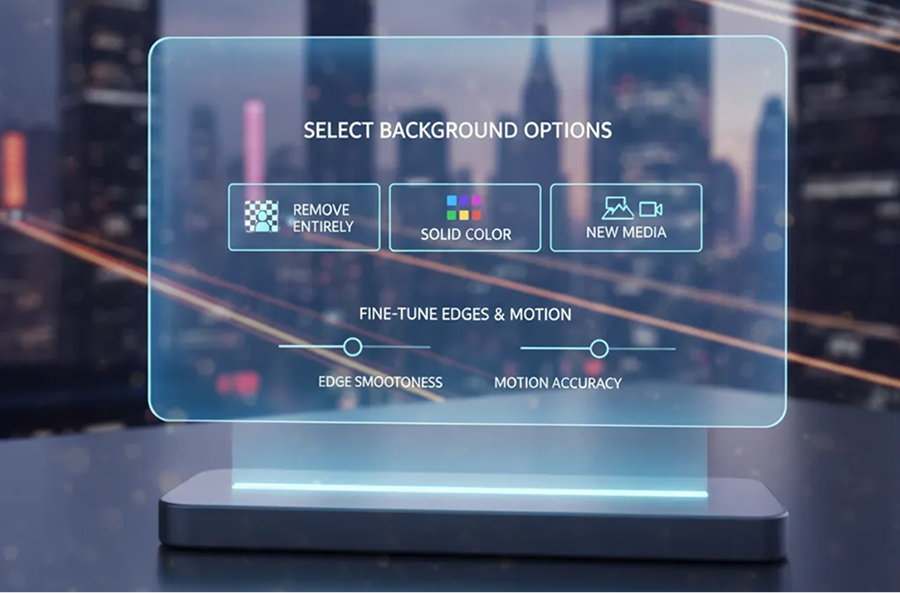
Choose your edit

Select whether you want to remove the background entirely, replace it with a solid color, or insert a new image or video backdrop. Use simple controls to fine-tune edges and motion accuracy.

Generated Image January 11, 2026 - 6_56PM 1.png
3

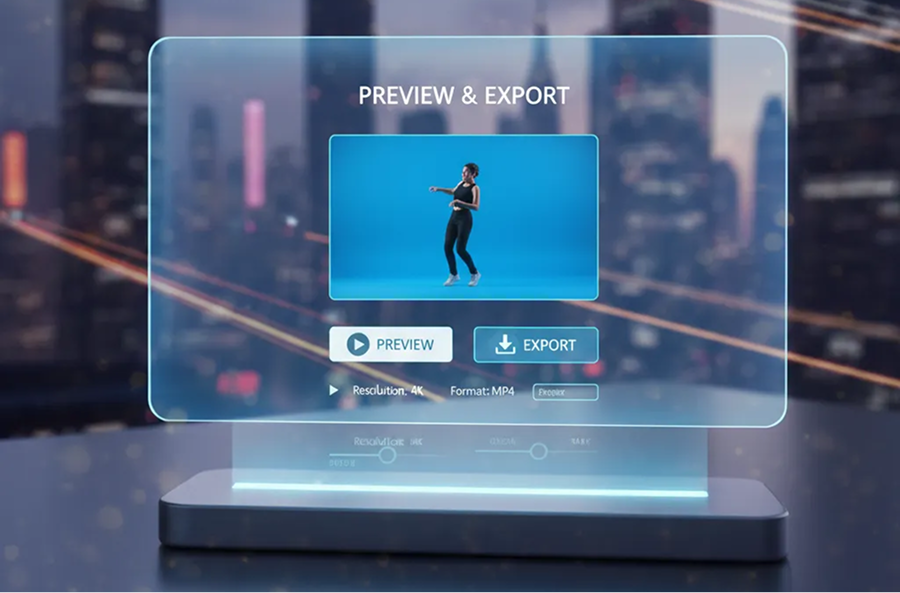
Preview and export

See the clean result in real time, undo any changes instantly, then download your edited video in high-quality MP4 or MOV format—ready to use anywhere.

Where can you use the AI Video Background Remover?

Whether you're producing content for business, education, social media, or personal projects—the applications are wide-ranging. The AI Video Background Remover adapts to your needs, whether you're refining a professional presentation, creating social clips, or producing polished marketing materials.

  • ✦ Produce clean, engaging clips for social media and professional presentations.
  • ✦ Create product videos with transparent or custom backgrounds for e-commerce.
  • ✦ Enhance instructional and educational videos with focused, branded backgrounds.
  • ✦ Support virtual events and personal projects with professional or creative background editing.
Generated Image January 11, 2026 - 7_57PM 1.png
Generated Image January 11, 2026 - 7_57PM (1) 1.png

Tips for achieving the best results

Small adjustments can make a significant difference in achieving clean, professional-looking results. These tips will help you ensure natural-looking edits and maintain video quality.

  • ✦ Use well-lit footage with clear subject-background contrast for accurate AI separation.
  • ✦ Choose replacement backgrounds that match the subject's lighting and perspective for a natural look.
  • ✦ Review the video for edge consistency, especially around fine details and fast motion.
  • ✦ Preview the entire edit to ensure smooth transitions and a seamless, polished final result.
Placeholder image
Generated Image January 11, 2026 - 8_01PM (1) 1.png

How to download and edit your video

Exporting your edited video is simple and flexible. You retain full control over format, resolution, and final touches—and can return to adjust settings anytime.

  • ✦ Apply final refinements using the in-browser editing tools before exporting.
  • ✦ Download in MP4 or MOV format, in resolutions suitable for web or high-definition playback.
  • ✦ Export multiple versions optimized for different platforms (e.g., square, vertical, horizontal) in one go.
  • ✦ Save your project files to revisit, edit, or create new variations later—all edits are preserved and fully reversible.
Generated Image January 11, 2026 - 8_13PM 1.png

Client Reviews

★★★★★

"A total lifesaver for our e-commerce brand!"

"We shoot product videos in our small warehouse. This tool lets us place our products in beautiful, clean environments that look like a professional studio. The quality is fantastic and has boosted our conversion rates."

Sophie

★★★★★

"The best AI app out there"

"I can have all my favorite AI tools in one workspace, work with them from anywhere using a laptop and create awesome results in literally 2 minutes for my upcoming social media post, newsletter or a fun meme for my friends."

David

★★★★★

"Exactly what our social media team needed."

"We create dozens of video clips weekly. Manually removing backgrounds was our biggest bottleneck. Now we process videos in minutes, not hours, and the results are seamless—even with movement and hair."

Chloe

★★★★★

"Super intuitive once you get the hang of it!"

"I've tried many generators, but this one actually understands context. The consistency in style across different images is exactly what I needed for my brand identity. It saves me hours every week."

Marcus

★★★★★

"Unlimited potential"

"We no longer need to book a studio or set up green screens for internal communications. Executives can film anywhere, and we make it look professional. It's cut our video budget significantly."

Julia

★★★★★

"Saved our YouTube channel from looking amateur."

"Clean interface, fast results, and high quality. It's rare to find a tool that balances power and simplicity so well. The community support is also fantastic if you ever get stuck."

Thomas

Best AI Tools All in One Place

OpenAI_logo.svg

GPT Image AI image generation & editing Sora 2 Cinematic video generation

Google_2015_logo 1.svg

Imagen 4 Ultra-sharp images Gemini 2.5 / 3.0 Multimodal generation & editing Veo 3.1 Fast video + motion consistency
Image_tort.png

Logo_runway.svg

Gen 4 Best for consistent characters & video frame generations Aleph Video editing & effects
Image_girl.png

Midjorny.svg

MidJourney Image generation & variations Upscale / Outpaint / Pan Advanced editing tools
Image_coffe.png

Logo_hailuo.svg

Hailuo 2 Pro High-quality video animation
Image_vert.png

Logo_king.svg

Kling 2.5 v1, v1.5, v1.6, v2 video generation
Image_train.png

Explore similar use cases

🎨

AI Video Colorizer

Restore black-and-white videos with natural AI-powered coloring

🖼️

AI Scene Previsualization Tool

Rapid visual mockups for film and animation planning

👤

AI Video Generator from Text

Create animated or realistic video clips from prompts

🔁

AI Animation Assistant

Generate scenes, assets, and frame transitions for motion design

FAQs

Answers to common questions about using Phygital+ and editing images with AI.

How precise is the AI at cutting out difficult subjects, like fine hair or motion blur, without a green screen?

+

Can I replace the background with my own custom image or even another video clip?

+

I have multiple clips from the same shoot. How can I apply the same new background to all of them quickly?

+

I'm not a video editor. How much technical skill is required to use this tool in Phygital+?

+

Will using the AI Video Background Remover reduce the quality or resolution of my final video?

+

What is the advantage of using Phygital+ for this compared to a standalone app or software plugin?

+

Start for free

Create logos, roadmaps, and brand visuals in one place.